
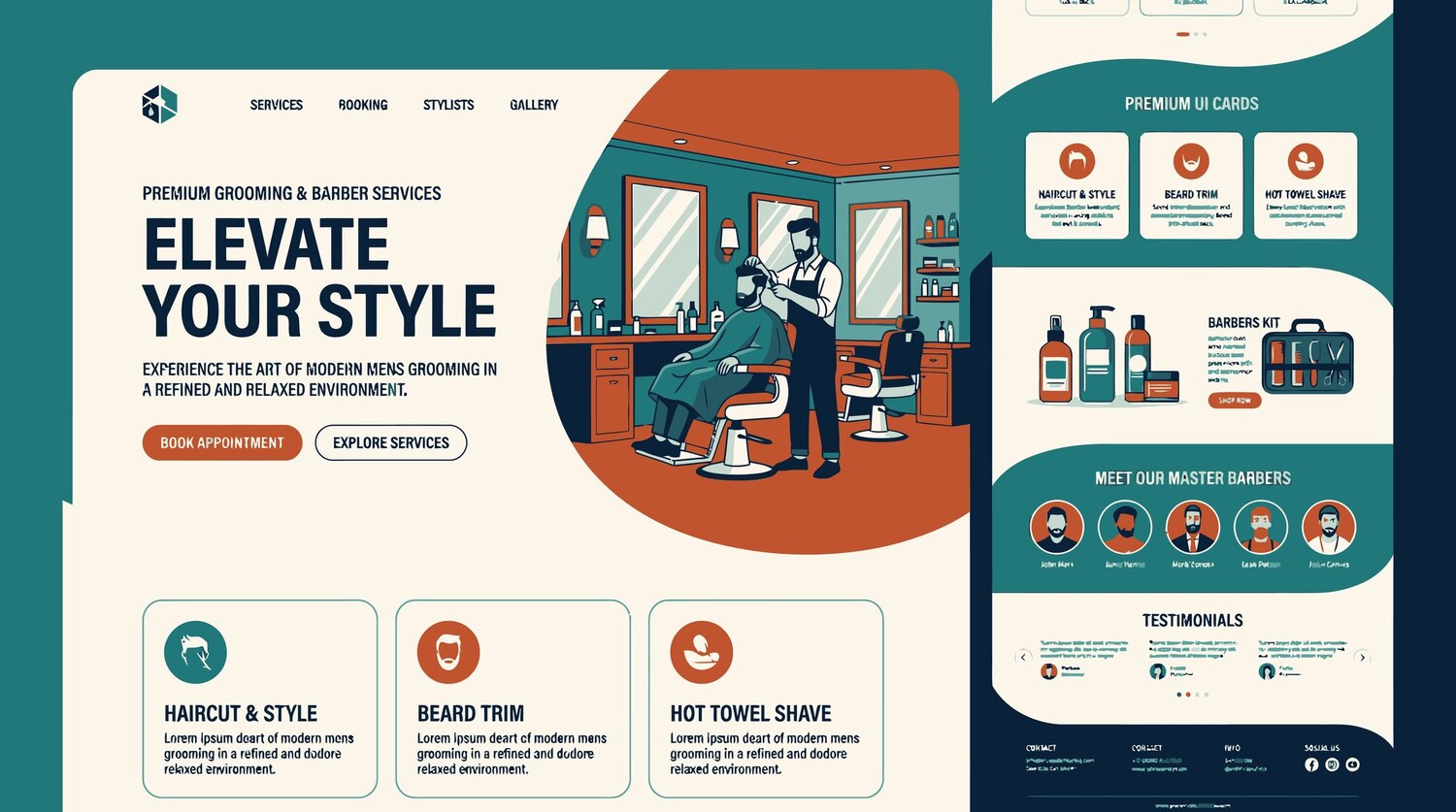
WordPress template parts provide a practical way to manage recurring structural areas without rebuilding them on every page. In a block theme, a header, footer, sidebar or navigation overlay can be assembled from blocks and reused inside multiple broader templates. This makes shared site areas easier to identify and maintain, while also making each change more significant: editing one shared part can affect every template that includes it.
The workflow depends on the Site Editor, which is available when a block theme is active. This guide explains how template parts work, how they differ from templates, how to edit a sitewide header or footer, what template part settings mean, and how to approach classic widget-area migration. It also separates structural reuse from synced patterns and ordinary patterns so that each tool is used for the type of reuse it is intended to support.
What WordPress Template Parts Are
A WordPress template part is a reusable group of blocks intended for a repeated structural area of a website. Rather than placing the same header or footer separately into many page layouts, a block theme can include one template part wherever that area is needed. The part becomes a smaller, reusable section inside broader block templates.
This approach is especially useful for global areas. The Site Editor can be used to manage the complete site structure when a block theme is active, including templates, headers, footers, navigation and page layouts. A change made to the shared part can then appear in the corresponding area of every template that uses it. That central control is useful, but it also means sitewide edits should be reviewed before they are published.
The Sitewide Areas They Can Control
Common examples of template parts include headers, footers and sidebars. The documented area classifications also include a navigation overlay. These are structural elements that recur across different content or page types, rather than ordinary content intended to appear only in one article or page.
For example, a header template part may contain site navigation and other header blocks, while a footer template part may contain the recurring lower area of the site. The exact blocks and visual presentation depend on the active theme and its configuration. The key principle is that the shared area is maintained as one reusable part and inserted into the broader templates that need it.
Template Parts vs. Templates
Templates and template parts are related, but they do different jobs. A template defines the broader layout for a post, page or specific page type. It represents the overall structure used to display that type of content. A template part is a smaller reusable section placed inside one or more of those layouts.
In the Site Editor, the two objects are managed separately. Templates are accessed through the Templates area, while template parts are commonly found under Patterns or in the template-parts area. This separation helps you select the right object before making a change. If the problem concerns the overall arrangement for a content type, inspect the template. If it concerns a repeated header, footer or similar structural section, inspect the template part.
A Practical Mental Model
A useful mental model is to treat a template as the plan for a complete page type and a template part as a component inside that plan. One template can contain multiple template parts. For instance, a broader layout may include a shared header at the top and a shared footer at the bottom, while other structural areas are handled separately.
This distinction matters because changing a template part is not the same as changing an individual page. A page-level edit affects that page’s content or layout. A saved change to a shared template part can affect all templates that include it. Before editing, identify whether you are trying to change a complete layout or one recurring section within that layout.
How to Edit a Sitewide Header or Footer
To edit a shared header or footer, first confirm that a compatible block theme is active. The Site Editor workflow described here is not the same as the widget-based workflow used by every classic theme. When the required block-theme environment is available, open Appearance > Editor.
From the Site Editor, locate the relevant template part. Depending on the WordPress version and active theme, it may appear under Patterns or within a template-parts area. Select the Header or Footer part, open its editing view, and work with the blocks that make up the shared section. The precise labels and visual arrangement may vary, but the important step is to edit the shared part rather than opening individual pages one by one.
A Repeatable Editing Workflow
- Confirm that the active theme supports the Site Editor and template-part editing.
- Open Appearance > Editor from the WordPress administration area.
- Locate the relevant template part under Patterns or the available template-parts area.
- Select the Header or Footer part and open it in the focused editing view.
- Modify its blocks or documented settings, then save the template part.
- Preview representative pages and confirm that the shared area appears as intended.
The advantage is central maintenance: you edit the original shared header or footer once instead of repeating the same work across multiple layouts. The corresponding change can then apply wherever that part is included. Because the effect may be sitewide, review key page types before publishing a major change. A result that looks correct in the editor should still be checked in the places where the template part is used.
Understanding Template Part Settings
Template part settings help identify the structural role of a part. The documented area classifications include General, Header, Footer and Navigation Overlay. These classifications provide a way to distinguish the kind of recurring area being managed, although the exact interface and available controls can vary with the active theme and WordPress version.
The Template Part block also documents an option to rename a template part through its advanced settings. A clear name can make shared areas easier to recognize when several parts are available. Use the classification and name to describe the part’s role, but do not assume that every theme exposes identical labels, controls or visual arrangements.
Naming and Area Classification
Area classification is most useful when it reflects the purpose of the reusable section. A part classified as Header or Footer is easier to distinguish from a General part when reviewing the Site Editor. Navigation Overlay identifies another documented structural role. Renaming can add further clarity when the interface permits it through advanced settings.
These settings organize the reusable area; they do not replace the need to check how the active theme uses it. If a part appears in an unexpected location or does not behave as expected, inspect the broader template and the theme configuration as well as the part itself.
Importing Classic Widget Areas into Template Parts
Moving from a classic theme to a block theme can require a different way of managing areas previously controlled by widgets. WordPress documents an Import Widget Area option in the Template Part block’s Advanced Settings. This provides a migration route for bringing widget areas created in the classic theme into the block-theme workflow.
To use the documented route, select or edit a Template Part block and inspect its Advanced Settings for the import option. Choose the relevant classic widget area when the option is available, then review the resulting template part. The import should be treated as a migration aid, not as a promise that every widget will reproduce identically in blocks.
What to Check After Import
The result may depend on the widget, the active theme and the block-theme setup. After importing, review the affected header, footer or sidebar on representative pages. Check whether the visible arrangement, settings and functionality correspond to what the site requires.
If the result differs, separate the migration issue from the broader template layout. The widget area may have been imported, while the surrounding template still determines where the part appears. Verify the outcome before publishing and treat follow-up adjustments as a normal part of migration rather than assuming that every classic widget has an identical block-based equivalent.
When to Use Template Parts, Synced Patterns or Patterns
Template parts are not a universal replacement for every reusable block arrangement. The appropriate choice depends on what is being repeated. Template parts are intended mainly for repeated site structure, while synced patterns are intended for repeated content that should remain synchronized. Ordinary patterns are generally suited to repeated design or layout starting points.
This distinction prevents a structural area from being handled as though it were ordinary page content. A shared header or footer belongs to the structural template system. A repeated content section that must stay synchronized belongs to the synced-pattern approach described in the documentation. A design or layout starting point may be better represented by a regular pattern.
Choosing by the Type of Reuse
- Choose a template part when the repeated element is site structure, such as a shared header or footer.
- Choose a synced pattern when repeated content should remain synchronized across its uses.
- Choose an ordinary pattern when the main goal is to reuse a design or layout starting point.
Making this distinction before editing reduces the risk of changing the wrong object. It also clarifies why a shared structural area may update across templates while a reusable content design follows a different workflow.
Troubleshooting and Pre-Publish Checks
When template-part controls are missing, first confirm the active theme and whether it supports the Site Editor workflow. Template parts are managed through the block-theme environment described above, so a classic theme will not necessarily expose the same controls. Also remember that interface labels and navigation details may vary between WordPress versions and themes.
If a change appears in one place but not another, determine whether both locations use the same template part. A problem with the shared part is different from a problem with the broader template that includes it. After editing, review representative page types and check the visible result rather than assuming that one editor view represents the whole site.
A Final Review Checklist
- Verify that the active theme supports the Site Editor and template-part workflow.
- Confirm that you edited the intended Header, Footer, General or Navigation Overlay part.
- Review every important location where the shared part is used.
- Check navigation, branding, spacing and other visible shared elements.
- After importing widgets, verify appearance, settings and functionality.
- Preview key pages before publishing a sitewide change.
WordPress template parts are designed for reusable structural areas in block themes. They let site owners maintain shared headers, footers, sidebars and related areas centrally, while templates continue to define broader layouts for posts, pages and other page types. The most important operational rule is to treat a saved shared edit as potentially sitewide. Before publishing, confirm the active theme, inspect the affected templates, and review any imported widget areas. For other kinds of reuse, choose synced patterns or ordinary patterns according to whether the repeated element is content or design. Explore our WordPress plugins, WooCommerce extensions, themes and membership plans to find the right tools for your website.