
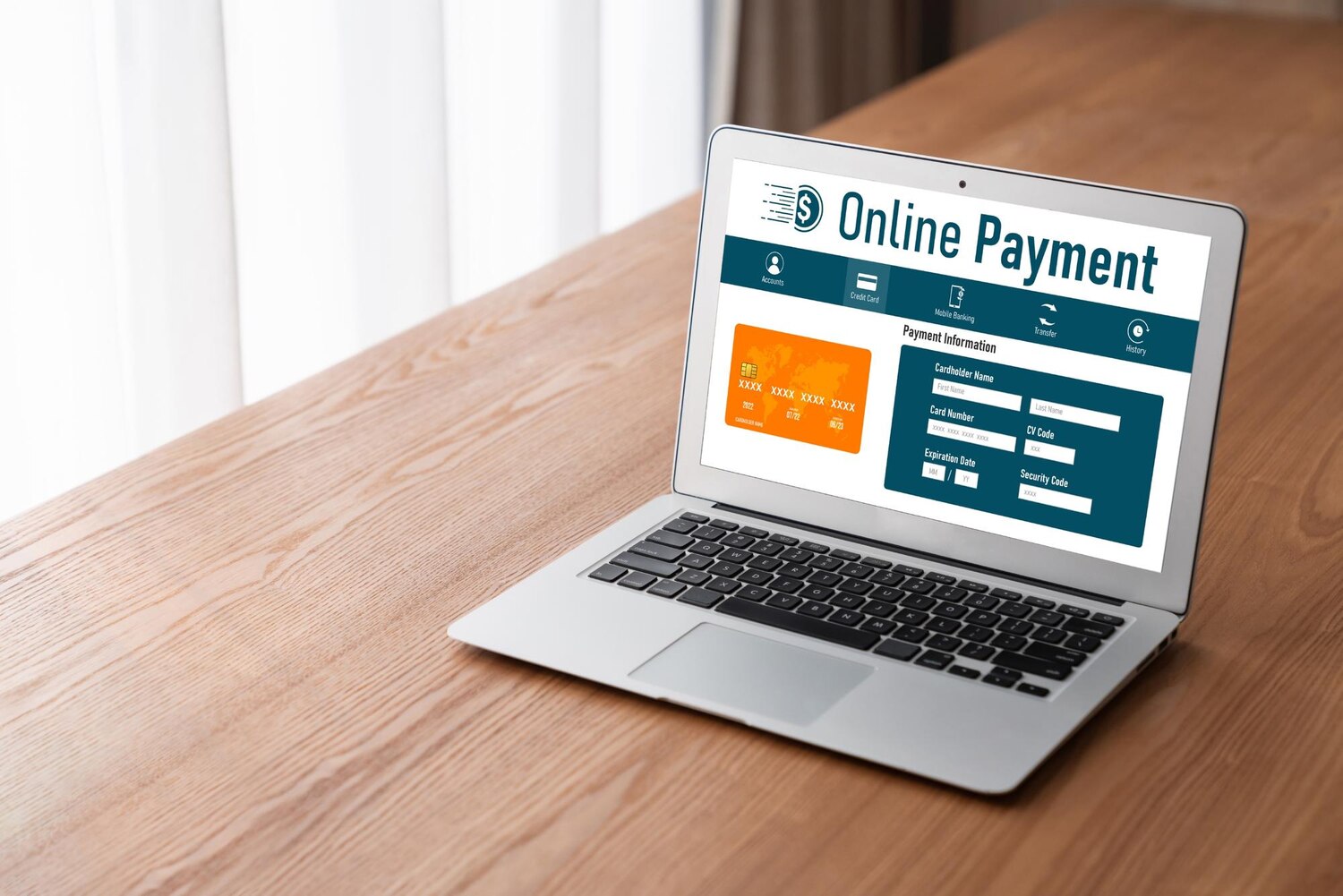
Multilingual WooCommerce stores need more than translated product names and checkout buttons. Customers also need to understand which payment method they are selecting, what information the gateway requires and what happens after an order is submitted. Payment gateway titles, descriptions, instructions and error messages are separate pieces of customer-facing content, so translating one does not automatically translate the others.
WPML handles registered WooCommerce payment strings through String Translation. This gives store owners and implementers a practical workflow: identify the text on the frontend, find the corresponding registered string, translate it and verify the complete order flow in every relevant language. However, the exact strings exposed for translation can vary according to the gateway or extension. The following process explains the standard workflow and what to do when a gateway label or instruction does not initially appear.
What WooCommerce Payment Text Can WPML Translate?
Before opening the translation interface, separate the payment content into the places where customers encounter it. WooCommerce distinguishes customer-facing gateway settings rather than treating all payment copy as one label. This distinction makes it easier to search for the correct string and to check whether the translation appears in the intended location.
Title, Description, Instructions and Errors
The payment method name, also used as the checkout title, identifies the option shown to customers during checkout. The gateway description provides additional payment information near that option. These are different strings and should be reviewed separately.
Payment instructions are another category. Depending on the gateway and its registered content, they may be shown on the thank-you page and in emails. Gateway-related error messages can also be translated through String Translation when they are registered. A translated title therefore does not prove that the description, confirmation instructions or error state has also been translated.
Keep the scope practical: this workflow addresses customer-facing payment text, not a general claim that a gateway is technically compatible with every language or currency. Translation changes what customers read; it does not by itself prove that payment processing works in every configuration.
Before You Start: WPML and WooCommerce Requirements
Start with an active WooCommerce payment gateway that is visible in the customer flow you want to translate. The relevant payment option should be observable on the checkout page, while instructions may be visible after the order or in an email. Use WPML String Translation as the main area for registered gateway interface strings and follow the WPML WooCommerce translation setup required for the documented workflow.
Do not assume that every payment extension exposes every label, instruction or error message in the same way. A standard gateway, a recently updated extension and a custom checkout implementation may register strings differently. The reliable approach is to inspect the actual frontend wording, search for it and then test the result after translation.
Confirm the Text Exists in the Customer Flow
Open the relevant checkout or confirmation location before searching. Note the exact wording and classify it as a payment title, description, instruction or error message. Also note where it appears: beside the payment option, after checkout, or in an email. This baseline helps distinguish a missing translation from text that belongs to another part of the order flow.
Visit the affected frontend page in the relevant language when necessary. WPML documents that visiting a page can help register strings that are not initially available in String Translation, particularly after an extension has been installed or updated.
How to Translate Payment Gateway Names and Descriptions
The primary workflow for payment method names and descriptions uses WPML’s String Translation area. The important detail is to search for the registered gateway text rather than treating the visible checkout wording as proof of a particular registration name.
Search and Register the Relevant String
- Open WPML → Translations → Strings.
- Search first for the visible payment gateway name or customer-facing wording.
- If the result is not clear, search using the relevant plugin text domain when it is available in the registered strings.
- Translate the customer-facing payment method name or checkout title.
- Translate the gateway description separately from the title.
- Save the translations and return to the frontend checkout for verification.
WPML documents payment method names and descriptions as strings handled through this workflow. The exact search term depends on how the selected gateway registers its content, so avoid inventing a text domain when the expected string is not present. Instead, continue with the missing-string procedure described below.
When editing payment text, preserve gateway-specific placeholders, HTML, links, account numbers, reference formats and security-related wording. A translation should communicate the same operational information. Do not simplify or rewrite transaction-critical details merely to make the copy shorter.
Verify the Checkout Result
Open the checkout in each target language and inspect the payment option as a customer would see it. Compare the title and description independently. Check that the translated title is attached to the intended payment method and that the description appears in the correct location. Repeat the check for every relevant payment method rather than assuming that one successful translation covers the others.
String Translation confirms that a string has a translation assigned; it does not confirm that the gateway can process payments in every language or currency. Treat frontend verification and a later test order as separate steps.
How to Translate Checkout Instructions and Confirmation Messages
Use String Translation for registered gateway descriptions, error messages and thank-you-page instructions. These items may belong to different stages of the customer journey, so locate each one before translating it. An instruction shown after checkout should not be confused with the description displayed beside the payment option.
Separate Checkout Copy from Confirmation Copy
The checkout title identifies the payment method. The checkout description gives customers payment information while they choose an option. Instructions may instead be added to the thank-you page and emails after the order is submitted. Error messages form a separate category and should be checked in the situation that produces them, when they are registered for translation.
Translate each registered string in its own context, then complete the order flow far enough to view the result. Check the confirmation page and emails where applicable. Before publishing, confirm that translated instructions have not changed bank details, payment deadlines, refund conditions or other operational requirements. Preserve placeholders, links, HTML and security-related wording.
Not every gateway necessarily exposes all of these text types through WPML String Translation. If an expected instruction is absent, use the missing-string workflow rather than assuming that the translation was saved incorrectly.
Missing Gateway Strings: Troubleshooting Workflow
A gateway label or instruction may be missing because the relevant extension has not yet been scanned, the string is registered as admin text, the frontend page has not triggered registration, or the content is generated through JavaScript. These cases require a diagnostic process, not a guessed search term.
Scan the Relevant Component
First visit the checkout, thank-you page or other frontend location where the missing text appears. Then open WPML’s missing-strings workflow. Use Admin Texts Translation or the plugin and theme scanner against the component that is most likely to contain the wording: the relevant payment gateway extension, WooCommerce or the active theme.
After scanning, return to String Translation and search again using the visible wording or the registered plugin text domain. If the string becomes available, translate it and revisit the same frontend location. A newly installed or recently updated extension may require a one-time scan before its strings appear.
- Scan the relevant payment extension when the text belongs specifically to the gateway.
- Scan WooCommerce when the wording comes from the WooCommerce component.
- Scan the theme when the text is supplied by the theme or its checkout presentation.
- Visit the affected frontend page again when registration depends on that page being loaded.
Scanning can register strings that were not initially visible, but it is not a universal fix. Custom gateways or checkout templates that bypass standard WooCommerce or WPML registration paths may require vendor-specific support or compatibility work.
Handle JavaScript-Generated Text Separately
If the missing wording is rendered through JavaScript, follow the separate WPML detection workflow. Enable Detect strings in JavaScript files, visit the frontend page where the text appears and scan the relevant plugin or theme under WPML compatibility settings. Then return to String Translation, find the newly registered string and translate it.
Use this option for the diagnostic task rather than leaving it enabled without a reason. WPML warns that JavaScript string detection may affect performance, so disable the detection option after the task when it is no longer needed. Finally, revisit the checkout or confirmation page and verify that the text appears in the correct language and context.
Testing Multilingual Payments Safely
Translation is complete only after the customer-facing order flow has been checked. A registered string may display correctly while another message, instruction or email remains in the default language. Testing also separates translated copy from the technical question of whether the gateway functions in a particular language or currency.
Frontend and Order-Flow Checklist
For every relevant language and payment method, review the complete flow:
- Check the payment option and its checkout title.
- Check the gateway description near the payment option.
- Review payment instructions on the thank-you page.
- Review emails that contain payment instructions, where applicable.
- Check gateway error states when they are part of the customer flow.
- Verify placeholders, HTML, links, account numbers, reference formats and security-related wording.
- Complete a test order in each relevant language.
Do not treat a successful String Translation entry as proof of successful payment processing. Likewise, do not change transaction-critical wording without checking the merchant’s operational requirements. If a custom gateway or checkout template does not follow the standard registration path, the relevant vendor or support channel may be needed; this should not be attributed to WPBetterPlugins.
The practical sequence is simple: identify the exact customer-facing payment text, translate registered strings in WPML String Translation, scan the relevant component when a string is missing, handle JavaScript-generated text separately and test the complete order flow. Keep titles, descriptions, instructions and errors distinct, because each can appear in a different customer-facing location. Verify every relevant language before publishing and treat payment functionality as a separate testing responsibility. Explore our WordPress plugins, WooCommerce extensions, themes and membership plans to find the right tools for your website.
олимп вывод через kaspi olymp35743.shop
mostbet зеркало для Кыргызстана https://www.mostbet51533.shop
chicken road términos y condiciones http://chicken-road37478.shop/
https://www.findreal.me : Free science‑backed assessments for personality, career, IQ & EQ. Private instant results. Uncover your true self right now.
пинко фриспины кг пинко фриспины кг