
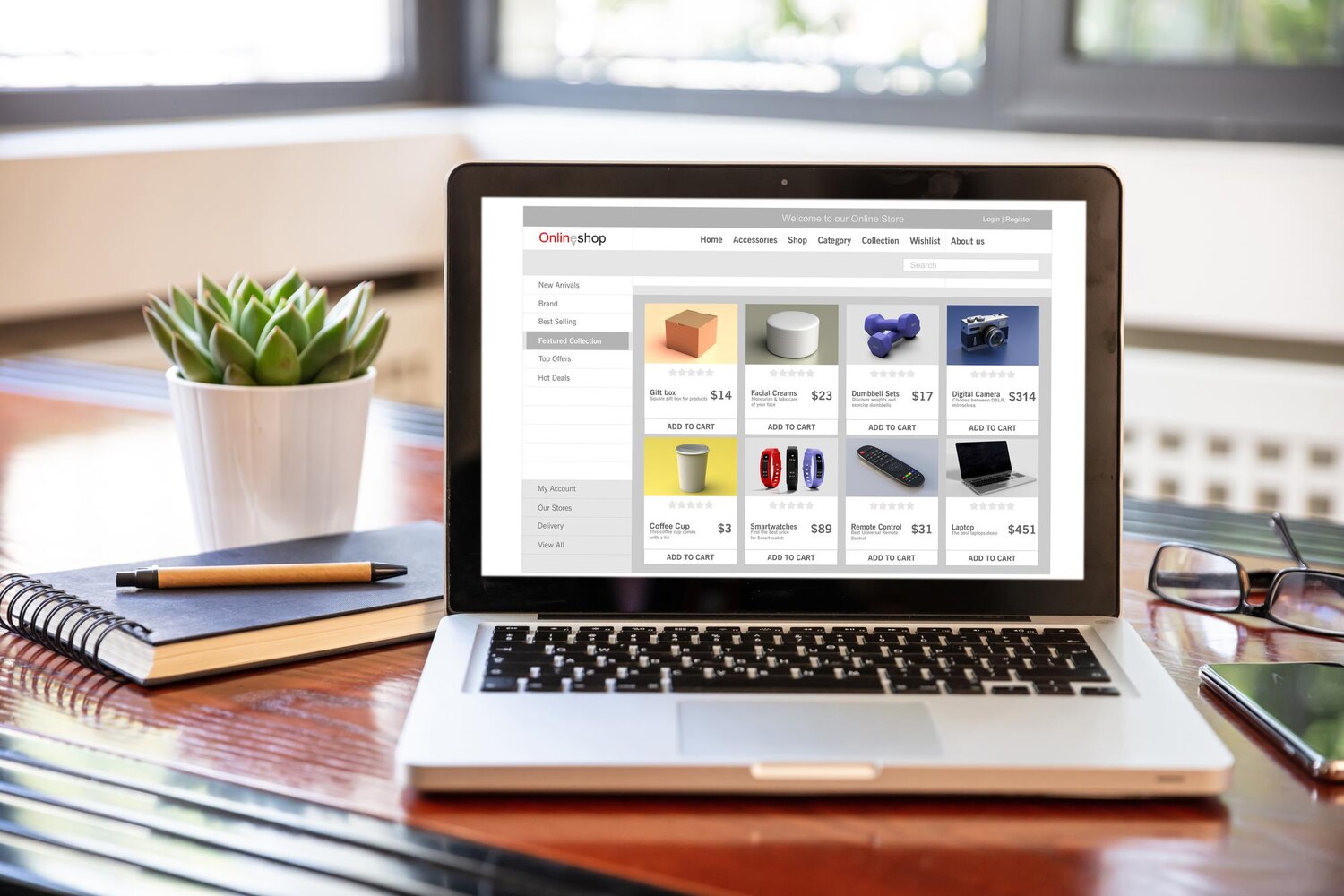
WooCommerce product sorting helps store owners decide how products are presented in the catalog without relying on custom development. Two controls are especially important: the featured-product status and the manual catalog order. They support different merchandising decisions, so treating them as interchangeable can lead to unexpected results on Shop and Category pages.
Featured status identifies a product for featured-product displays, while manual ordering controls the sequence used by the storefront when the relevant default sorting option is active. Catalog visibility is another separate setting that determines where published products appear. This guide explains how to configure each control, reorder products in the entire catalog or a filtered subset, and diagnose why a custom order may not be visible to customers.
Featured Products and WooCommerce Catalog Order: What Each Setting Does
Featured status versus catalog sequence
WooCommerce featured products and WooCommerce catalog order should be understood as separate tools. Marking a product as featured gives it a featured status that can be used by featured-product displays. It does not establish a universal rule that the product will appear first on every Shop or Category page.
Manual catalog order has a different purpose. It determines the intended sequence of products when the storefront uses the custom or default ordering option. This is the control to use when you want a deliberate product sequence in the catalog rather than an order based on another available criterion.
Catalog visibility is separate again. Product editor settings determine where a published product appears, including Shop and search, Shop only, Search only, or Hidden. Therefore, a product can have featured status while its catalog-location settings remain independently configured.
How to Mark a Product as Featured in WooCommerce
Three native admin paths
WooCommerce provides several native ways to mark a product as featured. Choose the workflow that best matches how you normally manage the catalog:
- Open Products > All Products in the WordPress administration area.
- Find the Featured column and select the star for the chosen product.
- Alternatively, use Quick Edit to change the product’s featured status without opening the full editor.
- Another documented route is the product editor’s Catalog Visibility settings, where the featured setting is available.
These methods change the product’s featured status. They do not automatically define its position in every product grid, shop archive, or category listing. If the goal is to control the default sequence of the catalog, use the manual sorting workflow as well.
After enabling the setting, check the relevant storefront display. A featured-product area and a standard catalog listing may use different presentation logic, so the visible result depends on the storefront implementation being used.
How to Manually Reorder Products in a WooCommerce Shop
The drag-and-drop sorting workflow
WooCommerce product reordering can be performed from the product management area. The basic workflow is:
- Go to WooCommerce > Products.
- Select Sorting to open the product-ordering view.
- Review the products shown in the sorting interface.
- Drag products into the required sequence.
This changes the customized order assigned to the products in the selected view. However, changing the order in the administration area is only one part of the process. The storefront must also be configured to use the relevant default or custom ordering option for customers to see that sequence as the default.
Before relying on the new arrangement, verify it on the Shop page and on relevant category pages. Check more than the first visible row: pagination and mobile layouts can show the sequence differently from the administration view.
Sorting Products Separately by Category, Type, or Stock Status
Apply filters before sorting
WooCommerce supports filtered product reordering, which is useful when the entire catalog should not be managed as one list. Before sorting, filter the product list by one of the available criteria:
- Category, to work with a specific product category.
- Product Type, to limit the selection to a particular type.
- Stock Status, to focus on a stock-status group.
- A combination of these filters, when a more specific product subset is required.
After applying the filters, confirm that the displayed products represent the intended subset. Then use the Sorting view and drag the products into the desired order within that selection. This makes it possible to manage a category or another filtered group rather than always changing the order of the entire catalog.
The storefront should still be tested after filtered sorting. The reviewed WooCommerce documentation describes the native workflow, but it does not establish that every theme, product-grid block, page builder, filtering extension, or custom product template will honor the same ordering behavior.
How to Make the Custom Product Order Visible to Customers
Default Sorting and customer-selected sorting
The most important connection between WooCommerce product sorting in the administration area and the storefront is the catalog’s default sorting configuration. To display the customized order as the default, select Default Sorting in the product catalog settings.
In classic-theme contexts, the documented path is Appearance > Customize > WooCommerce > Product Catalog. The setting controls the default order on Shop and Category pages. If the storefront offers visitors a sorting control, a customer can still select another available option, so the default sequence will not necessarily remain visible after that choice.
With default or custom ordering active, WooCommerce uses the customized product order first. When products share the same order position, product name is used as a secondary ordering rule. This explains why products without a distinct relative position may not appear in the exact sequence expected.
Theme configuration also matters. A block theme with Full Site Editing may not expose the Customizer in the same way, particularly when no other plugin has registered Customizer settings. In that situation, verify the equivalent product-catalog or query-order setting in the active theme or template instead of assuming that the classic navigation path is available.
Troubleshooting When WooCommerce Products Still Appear in the Wrong Order
A storefront verification checklist
If the custom product order is not visible, check the configuration and the actual storefront implementation in sequence:
- Confirm that the product catalog is using Default Sorting or the equivalent custom-order setting.
- Check whether a visitor-selected sorting option is currently active on the storefront.
- Compare the Shop page with the relevant Category pages, because the visible product loop may differ.
- Review pagination to see whether the expected sequence continues beyond the first page.
- Test the same pages on a mobile layout.
- If the site uses a block theme, page builder, product-filtering extension, caching layer, or custom archive template, verify whether that implementation respects WooCommerce’s default ordering.
- If the Customizer is unavailable, locate the corresponding product-catalog or query-order control in the active theme or template.
The documented primary cause is that the storefront is not using Default Sorting. Other checks are important because the reviewed documentation does not establish universal behavior for every theme, builder, filter, cache, or custom archive implementation. Test changes before using them as part of a live merchandising workflow.
A Repeatable WooCommerce Product Sorting Workflow
Separate the merchandising decisions
A repeatable process begins by deciding what each product should accomplish in the catalog. Use featured status for products intended to appear in featured-product contexts. Use manual catalog order when the default sequence on Shop or Category pages needs to be deliberate.
When managing a focused group, filter by category, product type, stock status, or a combination of those criteria before opening Sorting. Confirm the selection, arrange the products, and then validate the result on the storefront. This reduces the risk of changing products outside the intended merchandising group.
After catalog, stock, category, or template changes, recheck the actual pages customers use. Keep in mind that visitors may still choose another available sorting method. Removing or limiting those controls is a separate storefront decision and can reduce visitors’ ability to browse by another available criterion.
For agency or team workflows, record the intended sequence and the relevant filters so another administrator can understand what was changed. Do not assume that a theme, builder, filtering extension, or custom product loop will automatically reproduce the native WooCommerce behavior without verification.
WooCommerce offers separate controls for featured status and catalog sequence. Marking a product as featured does not guarantee first position in every listing. For manual ordering, use the Products sorting interface, apply filters when necessary, and configure the catalog to use Default Sorting. If the storefront still differs, check customer-selected sorting and the active theme or template implementation. Always validate Shop and Category pages, pagination, and mobile layouts before relying on the new order. Explore our WordPress plugins, WooCommerce extensions, themes and membership plans to find the right tools for your website.